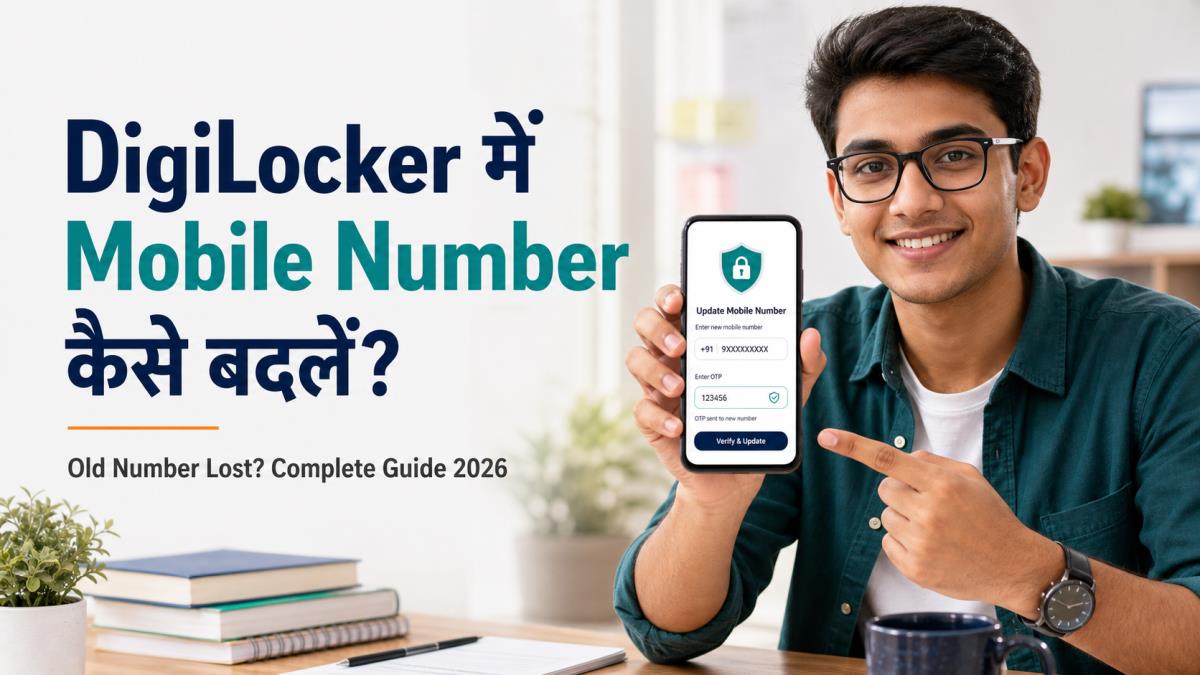
DigiLocker में Mobile Number कैसे बदलें—यह सवाल तब सबसे जरूरी हो जाता है जब पुरानी SIM बंद हो जाए, फोन खो जाए या OTP ऐसे नंबर पर जाने लगे जिसका अब आपके पास access नहीं है। अच्छी बात यह है कि कई मामलों में account या उसमें रखे issued documents खोए बिना नया mobile number जोड़ा जा सकता है। लेकिन सही तरीका इस बात पर निर्भर करता है कि आपके पास पुराने नंबर, Aadhaar-linked नंबर और security PIN में से क्या उपलब्ध है।
पहले समझें: DigiLocker और Aadhaar का Mobile Number अलग हो सकता है
अधिकांश confusion इसी जगह होता है। आपके DigiLocker profile में एक registered mobile number हो सकता है, जबकि Aadhaar में कोई दूसरा number linked हो सकता है। सामान्य login OTP DigiLocker registered number पर आ सकता है। वहीं Aadhaar verification या Aadhaar OTP वाला विकल्प UIDAI के records में linked number का उपयोग करता है।
इसलिए नया account तुरंत न बनाएं। गलत तरीके से दूसरा account बनाने पर “Aadhaar already registered” या “Account already exists” जैसी समस्या हो सकती है। यदि यह error पहले से आ रहा है, हमारी DigiLocker Account Already Exists समाधान guide पढ़ें।
Mobile Number बदलने से पहले क्या तैयार रखें?
- अपना 12-digit Aadhaar number या DigiLocker login identifier
- DigiLocker का 6-digit Security PIN
- Aadhaar से linked और चालू mobile number
- नया mobile number, जिस पर SMS और OTP प्राप्त हो सके
- स्थिर internet connection और updated DigiLocker app
तरीका 1: पुराना DigiLocker Mobile Number अभी चालू है
DigiLocker में Mobile Number कैसे बदलें, इसका यह सबसे सरल तरीका है। App के अलग version में विकल्पों के नाम थोड़ा बदल सकते हैं, लेकिन flow लगभग एक जैसा रहता है।
Website पर digilocker.gov.in खोलें या verified DigiLocker app इस्तेमाल करें। Search ad या मिलती-जुलती website से login न करें।
Registered mobile/Aadhaar और security PIN भरें। मांगा गया OTP दर्ज करके account खोलें।
Profile photo, menu या account settings में जाएँ। Mobile number के पास pencil/edit icon देखें।
देश कोड सही रखते हुए नया 10-digit Indian mobile number भरें और Submit/Update चुनें।
नए mobile पर आया OTP समय रहते दर्ज करें। Verification सफल होने पर profile दोबारा खोलकर number के अंतिम digits जाँचें।
Logout करने से पहले जरूरी documents दिखाई दे रहे हैं या नहीं जाँचें। फिर नए number से एक बार login test करें।
तरीका 2: पुराना Registered Mobile Number खो गया या बंद है
यदि आप खोज रहे हैं कि DigiLocker में Mobile Number कैसे बदलें जबकि पुराना SIM बंद है, तो यह section आपके लिए है। पुराने DigiLocker number का access नहीं होने पर बार-बार उसी OTP screen पर कोशिश करना उपयोगी नहीं है। यदि आपका DigiLocker Aadhaar से linked है और Aadhaar वाला mobile सक्रिय है, तो official Aadhaar OTP route इस्तेमाल करें।
Official DigiLocker sign-in page खोलकर mobile के स्थान पर Aadhaar number और अपना security PIN भरें।
Page के नीचे उपलब्ध Aadhaar OTP विकल्प पर जाएँ। यह OTP पुराने DigiLocker number के बजाय Aadhaar-registered mobile पर भेजता है।
SMS में आया OTP निर्धारित समय के भीतर भरें। OTP किसी दूसरे व्यक्ति या unofficial support agent से साझा न करें।
Successful login के बाद Profile खोलें और existing mobile number के सामने pencil/edit विकल्प दबाएँ।
नया mobile number भरें। उस नए number पर प्राप्त OTP दर्ज करके verification पूरा करें।
Update message मिलने के बाद profile reload करें। Logout करके नए number से login करके सुनिश्चित करें कि बदलाव काम कर रहा है।
पुराना DigiLocker Number और Aadhaar-linked Number दोनों बंद हैं
इस स्थिति में केवल नया SIM number डालकर Aadhaar OTP प्राप्त नहीं किया जा सकता। DigiLocker आपके Aadhaar record में मौजूद number को स्वयं बदल नहीं सकता। पहले यह पता करें कि Aadhaar में कौन-सा number linked है। e-Aadhaar download verification के दौरान registered number के अंतिम digits दिख सकते हैं।
यदि Aadhaar-linked mobile भी उपलब्ध नहीं है, तो UIDAI के वर्तमान अधिकृत तरीके से Aadhaar mobile update कराना होगा। प्रक्रिया और उपलब्ध online/offline विकल्प समय के साथ बदल सकते हैं, इसलिए केवल UIDAI की official website या Aadhaar Seva Kendra की जानकारी पर भरोसा करें। Aadhaar update reflect होने के बाद DigiLocker में Aadhaar OTP route दोबारा आजमाएँ।
| आपके पास क्या उपलब्ध है? | सही अगला कदम |
|---|---|
| पुराना DigiLocker number और PIN | Normal login करके Profile से number बदलें |
| पुराना number नहीं, Aadhaar mobile और PIN उपलब्ध | Aadhaar OTP से login करके Profile update करें |
| Aadhaar mobile है, PIN भूल गए | पहले Security PIN reset करें, फिर mobile update |
| दोनों mobile numbers बंद | पहले Aadhaar mobile update/official DigiLocker support |
| “Aadhaar already registered” error | नया account न बनाएँ; existing account recovery करें |
DigiLocker में Mobile Number कैसे बदलें: Common Problems
DigiLocker में Mobile Number कैसे बदलें यह समझने के बाद भी OTP और verification errors आ सकते हैं। नीचे हर error का अलग practical solution दिया गया है।
1. OTP नहीं आ रहा
एक OTP request के बाद कुछ मिनट प्रतीक्षा करें। कमजोर network, SMS delivery delay या temporary server load के कारण OTP देर से आ सकता है। बार-बार resend करने पर अलग-अलग OTP बन सकते हैं; हमेशा सबसे नया OTP उपयोग करें। फोन में SMS inbox space, DND/spam filtering और सही SIM active होने की जाँच करें।
2. “Mobile number is not linked with Aadhaar”
इस message का अर्थ है कि DigiLocker Aadhaar verification के लिए UIDAI record में वह number नहीं पा रहा। केवल DigiLocker profile में number लिख देने से वह Aadhaar-linked नहीं बनता। Aadhaar record की स्थिति official UIDAI channel से verify करें।
3. “UID service temporarily unavailable”
यह सामान्यतः temporary connectivity या UIDAI service issue हो सकता है। Details बार-बार बदलने के बजाय कुछ समय बाद official website या updated app से retry करें। कई घंटों तक समस्या रहने पर screenshot के साथ official DigiLocker support का उपयोग करें।
4. नया Number पहले से किसी Account में है
एक mobile number पहले से दूसरे non-Aadhaar DigiLocker account से जुड़ा हो सकता है। नया duplicate account बनाने के बजाय पहले उस account की पहचान और recovery करें। Aadhaar link status स्पष्ट होने तक किसी account को delete करने की जल्दबाजी न करें।
5. Security PIN सही नहीं माना जा रहा
Mobile OTP और 6-digit Security PIN अलग चीजें हैं। SMS वाला OTP अस्थायी होता है, जबकि security PIN आपने account protection के लिए set किया था। PIN याद नहीं है तो Forgot Security PIN route चुनें।
6. App में Edit icon दिखाई नहीं देता
App update करें, logout-login करें और Profile page दोबारा खोलें। फिर भी विकल्प न हो तो mobile browser या desktop पर official DigiLocker website देखें। UI version के अनुसार pencil icon, Edit Profile या Update Mobile जैसे labels हो सकते हैं।
DigiLocker में Mobile Number कैसे बदलें और Documents सुरक्षित रखें?
सिर्फ registered mobile number update करने से सामान्यतः existing DigiLocker account की identity या issued documents हटने नहीं चाहिए। Issued Documents संबंधित issuer द्वारा आपके account/Aadhaar identity के आधार पर जारी किए जाते हैं। लेकिन यदि आपने गलती से नया अलग account बना लिया, तो पुराने account के documents नए account में तुरंत दिखाई नहीं दे सकते।
Update से पहले Issued Documents section का सामान्य review कर लें। बदलाव के बाद Aadhaar, APAAR ID, marksheet या certificate न दिखे तो पहले account वही है या नहीं जाँचें। Marksheet संबंधी समस्या के लिए DigiLocker Marksheet Not Showing guide और APAAR के लिए APAAR ID DigiLocker में नहीं दिख रहा guide उपयोगी रहेगी।
DigiLocker में Mobile Number कैसे बदलें: 7 Security Checks
- Profile में नए mobile number के अंतिम digits verify करें।
- पुराने फोन में DigiLocker login हो तो logout और app data clear करें।
- Security PIN किसी आसान pattern जैसे 123456 या जन्म-वर्ष पर न रखें।
- Public computer या cyber café में password/PIN save न करें।
- Account activity में अनजान login या sharing action जाँचें।
- Documents share करते समय temporary link/QR की जरूरत समझकर ही अनुमति दें।
- केवल official domain और verified app से account access करें।
Update Failed हो तो Official Support को Complaint कैसे भेजें?
जब सामान्य तरीके से DigiLocker में Mobile Number कैसे बदलें वाला process पूरा न हो, तब verified support ticket सबसे सुरक्षित अगला कदम है।
सभी steps सही होने के बाद भी update न हो तो DigiLocker के official help/support channel पर ticket बनाएं। Complaint में समस्या का छोटा और स्पष्ट विवरण दें: error का exact text, प्रयास की तारीख/समय, app या browser version और masked mobile digits। Screenshot में Aadhaar number, OTP, PIN या sensitive document details छिपा दें।
Mobile update और account recovery guidance DigiLocker Official Website
Sign in और verified support access
DigiLocker Mobile Number Change: FAQs
पुराने नंबर के बिना DigiLocker में mobile number कैसे बदलें?
Aadhaar number और security PIN से sign in करें, फिर Try using Aadhaar OTP instead विकल्प चुनें। Aadhaar-linked mobile पर OTP verify करने के बाद Profile में नया DigiLocker mobile number जोड़ें।
क्या DigiLocker mobile number online update हो सकता है?
हाँ, account में सफल login और OTP verification के बाद Profile से registered mobile number online update किया जा सकता है।
DigiLocker OTP पुराने नंबर पर आ रहा है तो क्या करें?
Aadhaar-linked mobile चालू है तो Aadhaar OTP login विकल्प उपयोग करें। वह भी बंद है तो पहले UIDAI के अधिकृत तरीके से Aadhaar mobile update कराएँ।
Aadhaar और DigiLocker में अलग mobile number हो सकता है?
हाँ। Aadhaar verification OTP UIDAI record में linked mobile पर भेजा जाता है।
Mobile number बदलने से DigiLocker documents delete होंगे?
उसी account का registered number बदलने से सामान्यतः issued documents delete नहीं होते। Duplicate account बनाने से बचें।
Security PIN और पुराना mobile दोनों उपलब्ध नहीं हों तो क्या करें?
Forgot Security PIN में Aadhaar OTP recovery आजमाएँ। Aadhaar-linked mobile भी न हो तो पहले Aadhaar update या official support लें।
एक mobile number से दो DigiLocker accounts बन सकते हैं?
Account और Aadhaar-link status के अनुसार नियम लागू होते हैं। Duplicate बनाने से पहले existing account recovery करें।
नया mobile number update होने में कितना समय लगता है?
Successful OTP verification के बाद बदलाव सामान्यतः तुरंत दिखना चाहिए। Delay हो तो logout-login और app update करके जाँचें।
निष्कर्ष: DigiLocker में Mobile Number कैसे बदलें—इसका सुरक्षित तरीका नया account बनाना नहीं, बल्कि existing account में सही verification route चुनना है। पुराना number उपलब्ध हो तो normal login करें; वह खो गया हो तो Aadhaar OTP का उपयोग करें। Aadhaar-linked number भी बंद हो तो पहले Aadhaar record update कराएँ। हर स्थिति में official website इस्तेमाल करें और OTP या security PIN किसी के साथ साझा न करें।